
Best AI Video Generator Tools for Creators in 2026
A couple of years ago, if you wanted a cinematic drone shot for your intro or a talking-head avatar for a product demo, you either hired someone or you faked it with stock footage that never quite matched your brand. I spent an embarrassing number of weekends trying to make free stock clips look like they belonged in the same video. These days, that entire problem has basically disappeared. AI video generators can now produce broadcast-ready clips with realistic physics, synced dialogue, and camera moves that used to require a gimbal and a steady hand.
But here’s what nobody tells you upfront: there isn’t one “best” AI video generator. There are four completely different categories of tools, and picking the wrong one for your project wastes both your time and your credits — which, as I’ll get into, disappear faster than you’d expect. This guide walks through the 15 tools actually worth your attention in 2026, organized by what they’re built to do, so you can match the tool to the job instead of guessing.
The Four Categories You Need to Understand First
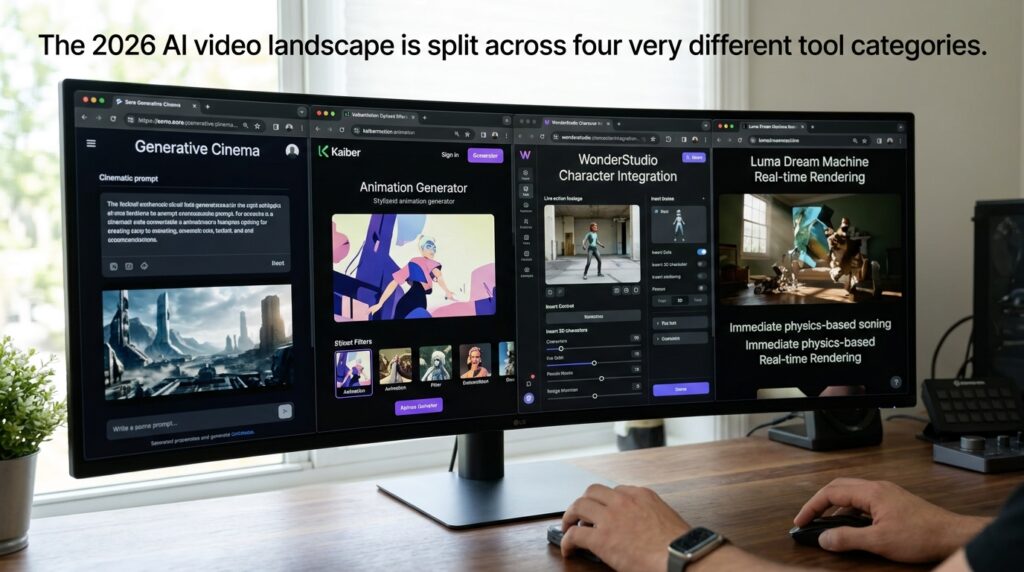
Before comparing individual products, it helps to know the lay of the land. Every AI video generator in 2026 falls into one of four buckets.
The first is diffusion-based text or image-to-video engines — think Google Veo, Runway, Sora, and Kling. These take a written prompt or a reference photo and generate a moving clip from scratch. They’re what you reach for when you need cinematic b-roll or an atmospheric shot that would otherwise require expensive location filming.
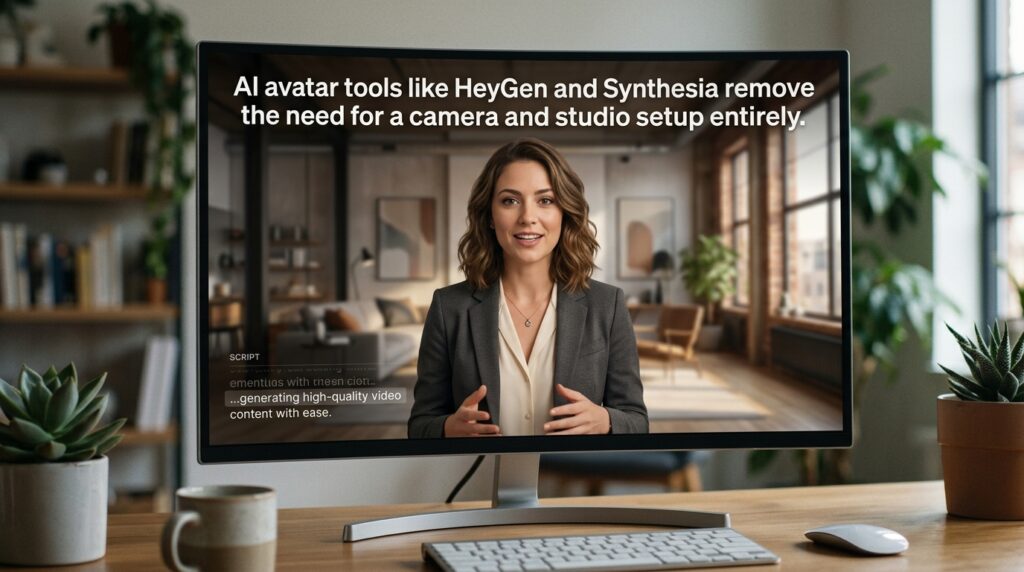
The second is AI avatar and presenter systems, like HeyGen and Synthesia. Instead of generating a scene, these create a realistic digital human reading your script — perfect for corporate training, product demos, or channels where you’d rather not be on camera yourself.
The third is automated faceless video creators, with InVideo AI being the standout example. You type a concept, and the tool writes the script, pulls stock footage, adds a voiceover, and assembles a finished video without you touching a timeline.
The fourth is AI-enhanced video editing software — CapCut, Descript, and Opus Clip fall here. These aren’t generating footage from nothing; they’re speeding up post-production on footage you already have, through auto-captioning, text-based editing, and smart repurposing.
Once you know which bucket your project belongs in, the rest of this guide gets a lot easier to navigate.
Best Cinematic AI Video Generators
If your goal is filmmaking-grade b-roll or genuinely cinematic footage, this is where you’ll spend your time.
Google Veo 3.1 is, in my experience, the current benchmark for physical realism. It’s accessible through Google Flow, Gemini, and even YouTube Shorts integration, and it’s one of the only tools generating native audio directly synced to the visuals — ambient sound, foley effects, and lip-synced dialogue all in one pass. What impressed me most was how it handled water and glass refractions in a test prompt; most AI video generators still struggle with that kind of detail. The catch is that Veo rewards technical, detailed prompts — if you’re vague, you get generic stock-footage-looking output. Clips are also capped around 8 to 10 seconds each, and removing the watermark requires a paid tier. Google offers 50 daily credits free, with Google AI Plus at $4.99/month and Google AI Pro at $19.99/month for full 4K and watermark removal.
Runway (Gen-4.5 / Gen-3 Alpha) is the tool I’d point any working filmmaker toward. Its Multi-Motion Brush feature lets you paint over up to five different regions in a static frame and assign each one independent movement — direction, speed, all of it. Combined with genuinely precise camera controls (pan, tilt, rack focus), it gives you a level of spatial control that feels closer to actual cinematography than “AI generation.” The tradeoff is a steeper learning curve and heavy credit consumption once you start experimenting with multiple takes. Runway’s free plan gives you a one-time 125 credits, and the Standard plan runs $15/month for 625 monthly credits with no watermark.
OpenAI Sora, bundled into ChatGPT Plus, is worth considering if your project involves complex narrative scenes with a moving camera — its 3D spatial consistency means objects and backgrounds stay accurate even during a full 360-degree orbit. It doesn’t generate native audio, and render times can slow down during peak traffic, but for photorealistic multi-character scenes it holds up well. It’s included in the $20/month ChatGPT Plus subscription.
Kling AI (3.0) deserves a specific mention if your content involves people — dancers, athletes, anyone with complex hand or body movement. It’s built by Kuaishou and is genuinely the strongest tool I’ve tested for human motion physics and multi-angle facial consistency, generating continuous clips up to 15 seconds. It does lag behind Veo on non-human subjects like abstract fluid dynamics. There’s a free tier with 6 daily generations, and the Standard plan is $10/month for 660 credits.
For fast commercial work, Seedance 2.0 (via Dreamina) stands out for rendering readable on-screen text and logos accurately — something a lot of AI video generators still botch. It also generates draft clips in under 30 seconds, which matters if you’re testing ad variations quickly. Resolution caps out at 2K on the free tier, and pricing runs around $15–$18/month.
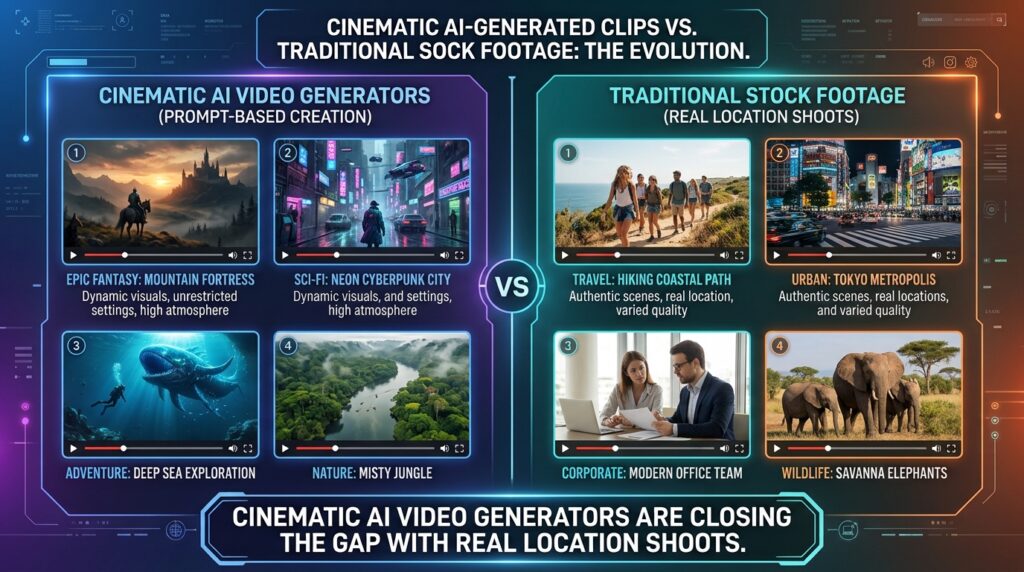
Luma Dream Machine and Pika round out this category with more accessible, creative-focused options. Luma is excellent for smooth camera tracking — think drone flyovers and dolly zooms — with a generous free tier of 30 monthly generations, though text rendering within scenes tends to distort. Pika, meanwhile, leans into creative social effects through its “Pikaffects” tool, letting you make objects inflate, melt, or explode in a clip, plus canvas expansion for reformatting aspect ratios. Neither quite matches Veo or Sora on photorealism, but for social-first content they’re genuinely fun and fast.
And if speed and cost matter more than polish, Hailuo AI (by Minimax) is worth a look — it’s one of the more budget-friendly options with fast rendering and fluid character expressions, though it lacks native audio sync entirely.
Best AI Avatar and Presenter Tools
Not every video needs a camera crew — sometimes you just need a person talking, and that’s exactly what avatar tools solve.
HeyGen is the one I’d recommend first if you want a realistic talking-head presenter without ever turning on your webcam again. You record a two-minute video once, and it builds a reusable digital avatar with your voice cloned. Its one-click video translator is genuinely impressive — it can dub an existing video into 29+ languages while re-animating the speaker’s lip movements to match, which is a real AI dubbing tool use case that used to require an entire localization team. The downside is price: the Creator Plan runs $29/month for 15 monthly credits, and it’s simply not built for cinematic b-roll or physical action scenes.
Synthesia takes a more corporate angle, with 160+ studio avatars aimed squarely at enterprise training and internal communications. If you’re a small business owner building onboarding videos or product walkthroughs, Synthesia’s ability to turn a PDF or slide deck directly into an avatar-led video script is a genuine time-saver. It integrates with SCORM and LMS systems too, which matters if you’re delivering formal training content. It’s less suited to high-energy YouTube or TikTok content — the avatars can feel a bit stiff for anything casual. Pricing starts at $29/month for 10 video minutes.
Best Automated Faceless Video Tools
If you run — or want to run — a faceless YouTube channel, this category solves nearly the entire production pipeline in one tool.
InVideo AI is the standout here. You type something like “create a 10-minute documentary about the history of space exploration,” and it writes the script, pulls matching stock footage from premium libraries like iStock and Storyblocks, generates a voiceover, and adds captions — all without you opening a timeline. What I like about it is the natural-language editing afterward; you can say “change the voiceover to a British accent” or “replace scene three with underwater footage” and it just does it. The free plan gives you 10 minutes per week but includes watermarks and can’t be monetized directly, so if you’re serious about a faceless channel, budget for the Plus plan at $17/month for 50 unwatermarked minutes.
Community discussions on Reddit’s r/ContentCreators and r/VideoEditing consistently note that InVideo AI’s reliance on stock footage can make videos feel visually generic if you don’t customize scenes — something worth keeping in mind if originality matters to your brand.
Best AI Video Editing Software for Post-Production
This is where most creators — myself included — actually spend the bulk of their time, because generating footage is only half the job.
CapCut AI remains my go-to recommendation for short-form video editing apps, and for good reason: it’s one of the few tools that gives you a free 1080p export without a mandatory watermark. Its script-to-video engine can take a written script and automatically assemble a timeline with stock footage, captions, and transitions, and the auto-generated subtitles are impressively accurate. The AI background removal also works without a green screen, which matters if your recording setup is, like mine used to be, a bedroom corner. Premium AI effects and 4K export require CapCut Pro at $9.99/month.
Descript flips traditional editing on its head by making the transcript the primary editing surface — delete a sentence from the text, and the corresponding video segment disappears too. Its Studio Sound feature is genuinely one of the best AI podcast tools for cleaning up echo and room noise, and the filler-word removal (all those “ums” and “uhs”) saves a painful amount of manual scrubbing. The free plan caps you at 1 hour of transcription per month and 720p exports, so if you’re doing regular interview or podcast editing, the $16/month Hobbyist plan removes both limits.
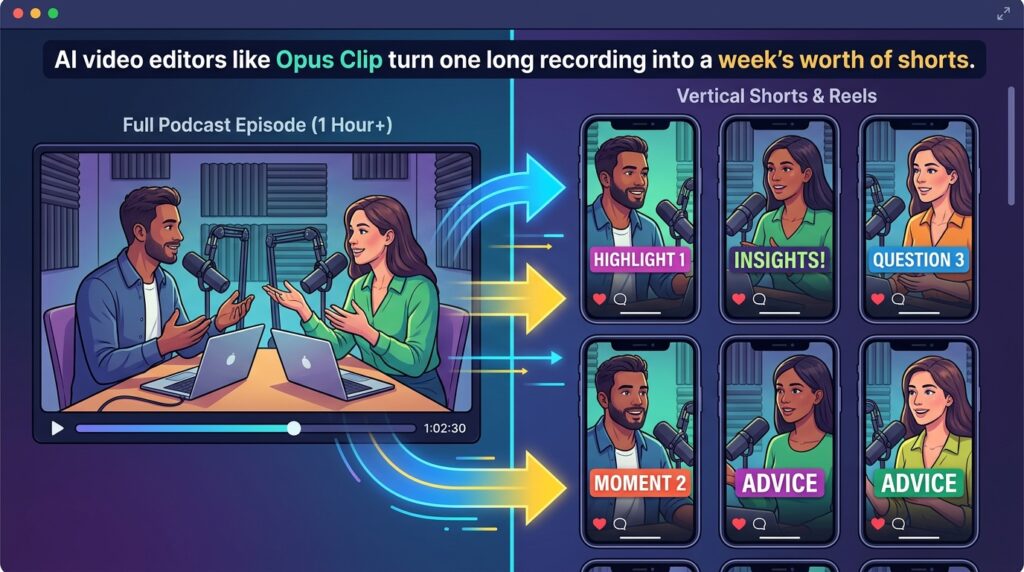
Opus Clip solves a different problem entirely: repurposing. Paste in a YouTube link or upload a podcast file, and it analyzes the narrative for hooks, extracts the most engaging segments, reframes them to 9:16 vertical, and applies animated captions with an AI-generated “virality score” ranking each clip. It’s saved me hours of manually scanning a 60-minute recording looking for the good three-minute chunk. The free tier gives 60–90 processing minutes monthly, watermarked, with the Starter plan at $15/month removing that.
Finally, Adobe Firefly Video deserves a mention specifically for creators and small businesses who care about commercial safety. Since it’s trained exclusively on licensed Adobe Stock and public domain content, there’s no ambiguity about whether your generated visuals are safe to monetize — a real concern with several of the diffusion-based generators on this list. It integrates directly into Premiere Pro through its Generative Extend feature, which fills in gaps at the end of a clip automatically. Firefly Standard runs $9.99/month for 2,000 generative credits, or it comes bundled into a standard Creative Cloud subscription.
The “Credit Trap” Nobody Warns You About
Here’s something I learned the hard way, and it’s echoed constantly across creator forums like r/VideoEditing: subscription credits disappear far faster than the marketing pages suggest. Generating a usable 5-second clip often takes three or four prompt attempts before you get something worth keeping, which means your effective cost per finished clip is closer to triple or quadruple the sticker price. If you’re budgeting for an AI video generator, plan around that reality rather than the advertised monthly credit count.
Why Hybrid Workflows Win
Almost nobody I know — and nothing in serious creator community discussions — relies on a single AI video generator for an entire project. The tools that actually work well together get chained: script and ideation through an AI writing tool like Claude or ChatGPT, voiceover and audio cleanup through ElevenLabs and Adobe Podcast, key cinematic shots generated through Google Veo or Runway, and the final assembly and captioning handled in CapCut or Descript. Trying to force one tool to do everything is usually where creators get frustrated and give up.
Monetization and Disclosure: What You Actually Need to Know
If you’re building on YouTube specifically, it’s worth knowing upfront that the platform requires creators to label content using the “Altered/Synthetic Content” toggle when AI-generated visuals are realistic. According to creator community reporting, channels that blend genuine human storytelling with AI-generated b-roll tend to maintain healthy monetization and reach, while fully automated “spam” channels — heavy stock footage, zero original narration — often see reduced visibility under YouTube’s reused content policies. You can review YouTube’s official guidance directly on the YouTube Help Center.
How to Actually Choose
If you’re a filmmaker or visual artist chasing cinematic quality, start with Google Veo 3.1 or Runway Gen-4.5 — they’re built for spatial precision and physical realism. If you’re running an educational or faceless YouTube channel, pair InVideo AI with Descript for scripting, voiceover, and cleanup in one workflow. If your focus is corporate training or product demos, HeyGen or Synthesia will save you from ever needing a camera crew. And if you’re primarily making short-form content for Reels, TikTok, or Shorts, CapCut AI or Opus Clip will get you from raw footage to published clip the fastest.
Final Thoughts
The gap between “amateur with a laptop” and “professional production house” has genuinely narrowed in 2026, but it hasn’t disappeared — it’s just shifted from equipment to tool selection. The creators getting the best results aren’t the ones chasing every new AI video generator that launches; they’re the ones who’ve built a tight, repeatable pipeline out of two or three tools that actually fit how they work. Start with whichever category matches your current project, test the free tier honestly before committing to a subscription, and build outward from there. That’s exactly the approach that’s worked for me.