

20 Best AI Tools for Content Creators That Actually Save You Time in 2026
Somewhere around my second year of creating content full-time, I did something I should’ve done a lot sooner — I actually timed myself for a week. Every task, every app, every hour. Scripting, filming, editing, thumbnail design, captioning, uploading, scheduling. All of it, logged in a spreadsheet.
The number that came back genuinely embarrassed me. I was spending close to 35 hours a week on production and admin work, and maybe 4 or 5 hours actually thinking about ideas, strategy, or talking to my audience. That’s backwards. That’s the tail wagging the dog.
That spreadsheet is basically the reason I went all-in on rebuilding my workflow around AI tools for content creators, and it’s why I’m writing this guide now. If you’re a small business owner trying to keep up a content presence without hiring a full team, a tech student experimenting with your first channel, or a young graduate trying to build something on the side — the tools I’m about to walk you through can realistically give you back 15 to 20+ hours a week. I’m not guessing at that number either; it lines up almost exactly with what creator communities on Reddit and Quora have been reporting once they restructure their production pipeline around AI.
Let’s break down where all that time actually goes, and then the exact tools I’d point you to for each stage.
Where Creator Hours Actually Disappear
Before I list a single tool, it’s worth understanding the problem you’re solving. Most creators — myself included, for a long time — spend the overwhelming majority of their working hours on low-leverage administrative and technical tasks instead of the high-leverage stuff: ideation, storytelling, and actually connecting with an audience.
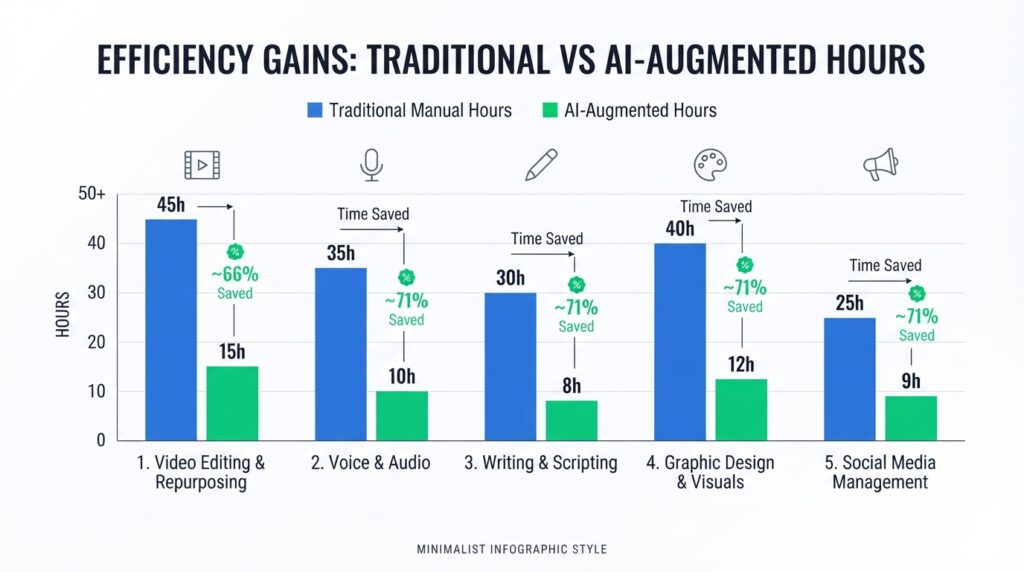
Roughly speaking, here’s how a traditional, fully-manual production week breaks down versus what it looks like once AI tools are integrated properly:
Scripting and research traditionally eats 6 to 8 hours a week; with AI writing tools in the loop, that drops to 1.5 to 2 hours. Video editing and B-roll sourcing, historically the biggest time sink at 10 to 12 hours, comes down to 3 to 4 hours. Short-form repurposing — cutting a long video into TikToks and Reels — goes from 5 to 7 hours down to under an hour. Thumbnail and graphic design drops from 3-4 hours to about 30 minutes. Audio processing and dubbing goes from 3-4 hours to 20 minutes. And distribution and scheduling shrinks from 3-5 hours down to about 45 minutes.
Add it all up, and you’re looking at a traditional 30-40 hour production week collapsing down to roughly 7-8.5 hours. That’s over 23 hours reclaimed — which, if you think about it, is basically a second part-time job’s worth of time handed back to you every single week.
Category 1: AI Video Editing and Short-Form Repurposing Tools
Video editing software is where I’ve personally seen the single biggest shift in how I work, so let’s start here.
Descript — Edit Video Like a Word Document
I resisted Descript for a long time because “edit video by editing text” sounded like a gimmick. It isn’t. Descript transcribes your footage into text, and when you delete a word — including every “um” and dead-air pause — it instantly cuts the matching frame and audio. The first time I ran a 40-minute raw recording through it and had a clean rough cut in under ten minutes, I was genuinely annoyed at myself for not switching sooner.
Its Studio Sound feature also deserves a mention — it takes compressed, mediocre mic audio and makes it sound like it was recorded in a treated studio, in one click. Descript has a free tier, with Creator at $12/month and Pro at $24/month, and it’s become one of the core pieces of YouTube editing software in my own stack. Estimated time saved: 3-4 hours a week.
Opus Clip — Turn One Long Video Into a Week of Shorts
If you’re producing long-form content — a podcast, a YouTube video, an interview — and not repurposing it into short-form clips, you’re leaving a lot of reach on the table. Opus Clip analyzes your footage, scores hook strength and narrative arc, then automatically clips, reframes to vertical 9:16, and captions the strongest segments.
What sold me on it wasn’t just the automation — it’s the “viral score” ranking that tells you which clips are statistically more likely to perform, so you’re not guessing which five minutes of a 60-minute podcast are worth cutting. Free trial available, Starter at $9/month, Pro at $29/month. This alone tends to save creators 4-5 hours a week.
CapCut AI — The Default for Fast, Mobile-First Editing
CapCut is where I tell almost every beginner to start, especially for short-form. Its auto-captioning, background removal without a green screen, and auto-cut templates that sync clips to trending audio beats make it genuinely fast to produce scroll-stopping content. It’s free for the basic desktop and mobile version, with Pro at $7.99/month or $74.99/year. Saves roughly 2-3 hours weekly.
Runway Gen-3 — Generate B-Roll Instead of Filming or Searching for It
Here’s a scenario that used to eat an entire afternoon for me: needing a specific cinematic shot I didn’t film and couldn’t find in any stock library. Runway Gen-3 solves this with text-to-video and image-to-video generation, plus generative in-painting to erase unwanted objects from existing footage. Free trial, Standard at $12/month, Pro at $28/month, saving about 3 hours a week for anyone doing tech reviews or documentary-style content.
HeyGen — AI Avatars and Multilingual Dubbing
This is the tool I recommend to creators trying to go global without learning five languages. HeyGen builds a photorealistic avatar of you, so typing a script produces a fully spoken video — no camera, no lighting setup, no mic positioning. Its dubbing feature translates videos into 40+ languages with lip-sync matching, which is genuinely one of the more impressive AI dubbing tools I’ve tested. Free tier (1 credit), Creator at $24/month, Business at $72/month. Time saved: around 4 hours a week, more if you’re localizing content across markets.

I’ve written more specifically about choosing between video editing apps for beginners
Category 2: AI Voice, Audio, and Podcast Tools
Good audio is non-negotiable, and this category of AI podcast tools has quietly become just as important as anything visual.
ElevenLabs — The AI Voice Generator Everyone’s Talking About
I use ElevenLabs constantly for faceless content and for fixing small script errors after a video is already recorded — instead of resetting up a mic to re-record one line, I just type the correction and it generates the voice in my cloned tone. Its dubbing feature covers 29+ languages, and the emotional expression controls mean the output doesn’t sound flat or robotic. Free plan available, Starter at $5/month, Creator at $22/month. Saves roughly 2-3 hours a week.
Adobe Podcast AI (Enhance Speech) — Studio Sound From a Phone Mic
If you’ve ever recorded an interview on a phone in a noisy café and cringed listening back, this tool is worth bookmarking. Adobe’s Enhance Speech feature strips background noise and echo and converts rough audio into something that sounds professionally mixed, in seconds, without touching an equalizer. Free tier (30 minutes a day), with Adobe Express Premium at $9.99/month. Saves about 1.5-2 hours weekly, and it’s become a staple piece of audio editing software for field interviewers.
Otter.ai — Transcription and Meeting Notes on Autopilot
For podcast hosts juggling guest interviews or agency creators managing client calls, Otter.ai’s live transcription and automated summaries are a quiet but real time-saver. It’s genuinely one of the better pieces of transcription software out there, with time-stamped speaker breakdowns that make show notes almost write themselves. Free tier covers 300 monthly minutes, Pro is $10/month, Business is $20/month. Time saved: around 2 hours a week.

Category 3: AI Writing, Scripting, and SEO Strategy Tools
Every video, post, or episode still starts with words, and this is where AI content writing tools come in.
Claude — Best for Deep Research and Long-Form Scripting
I lean on Claude specifically when I’ve got a pile of research documents, PDF transcripts, or competitor breakdowns I need turned into a structured video outline or a long newsletter. Its ability to hold a large amount of context at once means I can feed it an entire research report and get back something genuinely organized, not a shallow skim. Free tier available, Claude Pro at $20/month.
ChatGPT Pro — The Generalist Assistant
ChatGPT is where I go for quick ideation — title options, converting a rough transcript into a blog draft, or building a Custom GPT for a repetitive task like formatting show notes the same way every week. Free tier, Plus at $20/month, Pro tier at $200/month for heavier workflows.
Jasper AI — Best for Consistent Brand Voice
If you’re a small business managing multiple campaigns and need every piece of copy to sound like the same brand, Jasper’s Brand Voice memory feature is genuinely useful — it stores your style guide and tone so output doesn’t drift between writers or sessions. Creator plan at $39/month, Pro at $59/month.
Copy.ai — Best for Turning One Idea Into Many Formats
Copy.ai’s automated workflows take a single content idea and spin it into ad copy, LinkedIn posts, and email subject lines in one pass — a genuine time-saver for social media managers juggling multiple channels. Free plan, Starter at $36/month, Advanced at $186/month.
Combined, this category of AI writing tools tends to save creators 2-4 hours a week depending on how much long-form content you’re producing. I’ve gone deeper into prompt structures for scripting specifically at indishmarketer.com/ai-scriptwriting-guide.
Category 4: AI Graphic Design, Thumbnail, and Visual Tools
CTR still rules on YouTube, and this next set of tools covers everything from raw AI image generation to finished, click-worthy graphics.
Midjourney (v6/v7) — Best AI Image Generator for Distinctive Visuals
For thumbnails, blog headers, or any graphic where I want something that doesn’t look like a stock photo, Midjourney remains the strongest option I’ve tested. Using style references and the --ar 16:9 parameter, I can generate consistent, photorealistic art that stands out in a crowded feed. Basic plan at $10/month, Standard at $30/month.
Canva Magic Studio — Best All-in-One Graphic Design Software
Canva is still where I send every beginner, full stop. Magic Design, Magic Expand, Magic Eraser, and Magic Switch (which instantly resizes a graphic for every platform) cover nearly everything a non-designer needs, all inside one drag-and-drop interface. Free version available, Canva Pro at $14.99/month or $119.99/year.
Thumbmagic / Pikzels — Best Purpose-Built Thumbnail Maker
These tools are built specifically for YouTube creator tools workflows — feed in a video link or summary, and they generate niche-optimized 16:9 thumbnails with background isolation, dramatic facial rendering, and high-contrast typography baked in. Freemium pricing, with pro plans starting around $12-25/month. Great option if you also need a fast logo maker AI-adjacent tool for channel branding.
Adobe Firefly & Photoshop Generative Fill — Best for Commercial-Safe Design
For professional teams who need to know their assets are legally safe to use commercially, Firefly (trained entirely on Adobe Stock) inside Photoshop’s Generative Fill lets you expand images, remove clutter, and add elements via text prompt without leaving your PSD layers. Included in Creative Cloud at $22.99/month.
This entire visual category typically saves creators 2-3 hours a week — a number that climbs fast once you’re producing thumbnails for multiple uploads weekly. See tools for creating thumbnails
Category 5: AI Social Media Management and Scheduling Tools
Once your content is made, distribution is its own job. This is where social media management tools earn their keep.
Predis.ai — Best for Full Social Post Generation
Predis.ai takes a text prompt and builds a complete social post package — visual design, video reel, captions, and hashtags — then schedules it, all in one platform. Free plan, Solo at $32/month, Starter at $59/month. A strong fit for e-commerce store owners who don’t have a dedicated designer on staff.
Metricool AI — Best for Multi-Platform Scheduling and Analytics
Metricool centralizes scheduling across Instagram, TikTok, YouTube, LinkedIn, X, and Pinterest, and its AI assistant rewrites captions per platform while suggesting the best time to post based on your actual audience data. Free plan for one brand, Starter at $18/month.
Notion AI — Best for Content Planning and Team Organization
For creators juggling a content calendar across formats, Notion AI drafts briefs, summarizes meeting transcripts, and auto-fills database fields directly inside your existing workspace. Plus Plan runs $10/user/month with an $8/user/month AI add-on.
Manus (Agentic AI Workflow Automation) — Best for Hands-Off Execution
This one’s for the more technically curious readers. Manus operates as an agentic assistant that routes tasks across multiple specialized AI models — text, design, research — executing multi-step workflows autonomously instead of you manually jumping between five different apps. Pricing is currently tiered/usage-based as the category is still maturing.
Together, this category saves roughly 2-3 hours a week, mostly by eliminating the manual, repetitive act of logging into five different apps to post the same content five different ways.
Building the Full Creator Tech Stack (Hardware + Software)
Software alone won’t fix bad source footage — I learned that the hard way filming an entire video on a laptop webcam because I “didn’t have time” to set up proper gear. Never again.
Here’s the stack I’d recommend pairing your AI tools with. For cameras, the Sony ZV-E10 or Alpha 6700 both offer excellent autofocus and AI-powered subject tracking. For microphones, the Shure SM7B remains the industry standard for rich voice capture even in untreated rooms, while the Røde Wireless PRO is a solid compact option with built-in backup recording. If you’re doing live streams or calls, the Elgato Facecam Pro or Logitech Brio 4K both handle auto-exposure well. And for the actual editing horsepower, a MacBook Pro on the M3 or M4 Max chip handles local AI processing and multi-track audio without breaking a sweat, while the ASUS ROG Zephyrus G16 with an RTX 4080/5080 is the strongest Windows option for CUDA-accelerated generative rendering.
My Actual Workflow, Tool by Tool
Here’s how I stitch all of this together for a single piece of long-form content, start to finish.
Hardware capture. I film on the ZV-E10 with the Shure SM7B running into my interface, recording straight to the MacBook Pro.
Scripting and ideation. I dump my research into Claude to build a structured outline, then move quick notes and briefs into Notion AI so nothing gets lost between sessions.
Editing. The raw footage goes into Descript first for the rough cut and filler-word removal, then Adobe Podcast AI cleans up any rough audio sections. If I need a specific B-roll shot I didn’t film, Runway Gen-3 or Midjourney fills the gap.
Packaging. Thumbnails come together using a Midjourney-generated background composited inside Canva Magic Studio.
Repurposing. The finished long-form video runs through Opus Clip to generate a week’s worth of short-form content automatically.
Distribution. Everything gets scheduled in one sitting through Metricool, instead of me manually posting throughout the week.
That’s the entire pipeline — and realistically, it’s what took my own production time from roughly 35 hours a week down to under 10.
A Simple 4-Week Rollout Plan (Don’t Try to Do This All at Once)
If you try to adopt all 20 tools in a single week, you’ll burn out on the learning curve before you see any of the time savings. Here’s the staged approach I’d actually recommend.
In week one, focus purely on eliminating editing friction — get Descript set up for your primary long-form editing and Adobe Podcast AI running for audio cleanup. This alone tends to cut core production time roughly in half.
In week two, automate your short-form output by running your long-form exports through Opus Clip, building a repeatable pipeline for TikTok, Shorts, and Reels instead of manually re-cutting clips.
In week three, upgrade your thumbnail packaging by pairing Midjourney’s asset generation with Canva Magic Studio — you should be able to get a finished, high-contrast 16:9 thumbnail done in under 15 minutes.
In week four, centralize your scheduling by connecting your accounts to Metricool or Predis.ai, so cross-platform posting happens in one batch session instead of being spread across your whole week.
By the end of the month, you’ve rebuilt your entire pipeline without ever feeling like you’re drowning in new software all at once.
Frequently Asked Questions
How many hours can AI tools actually save a content creator? Based on the workflow breakdown above, creators moving from a fully manual process to an AI-augmented one typically reclaim over 20 hours a week — the biggest gains come from video editing and short-form repurposing specifically.
What’s the best free AI tool combination for a beginner? Descript’s free tier, CapCut’s free plan, Canva’s free version, and ElevenLabs’ free plan together cover editing, short-form content, design, and voice — a genuinely strong starting stack at zero cost.
Do I need to use all 20 tools to see real time savings? No — start with whichever production phase is currently your biggest bottleneck. For most creators that’s video editing or thumbnail design, so that’s where I’d start.
Is Claude or ChatGPT better for content creators? In my experience, Claude tends to handle long research documents and structured outlines more cleanly, while ChatGPT is a strong generalist for quick ideation and format conversion. Many creators, myself included, end up using both for different tasks.
Final Thoughts
I’ll be straight with you — none of these tools are magic, and none of them replace having an actual point of view or something worth saying. What they do is remove the friction between having an idea and getting it in front of an audience, which honestly used to be the thing that killed most of my momentum as a creator.
If you’re just starting out, don’t try to build the full 20-tool stack overnight. Pick your biggest time drain, fix that one thing this week, and build outward from there. That’s genuinely how I did it, and it’s the difference between a 35-hour production week and one that actually leaves room for the parts of this job that made you want to start in the first place.
For more detailed breakdowns of individual tool categories, check out my related guides at indishmarketer.com/creator-tools-reviews and indishmarketer.com/best-thumbnail-makers-2026.
Sources referenced: creator community feedback from Reddit and Quora forums, and hands-on testing of the tools listed, alongside publicly available pricing from each platform’s official site (e.g., Descript, Canva).