12 Best Content Creator Tools to Replace Canva in 2026
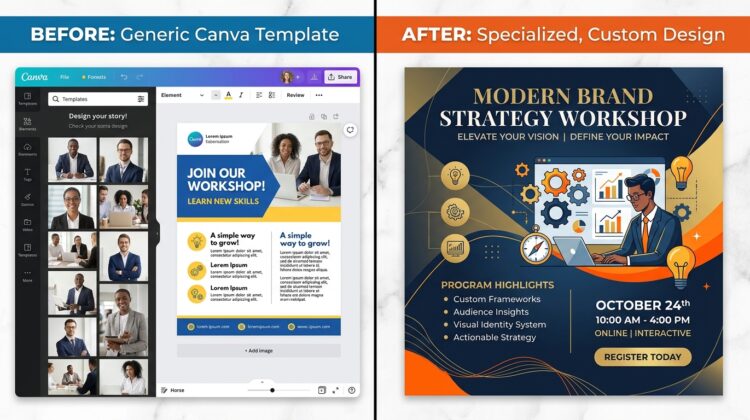
I used Canva for almost three years before I noticed something uncomfortable: half the graphics I was making looked exactly like graphics I’d seen on other people’s pages. Same fonts, same layout structure, same “template energy.” That’s the moment I realized Canva had done its job perfectly — it got me started — but it was also quietly capping how far I could go.
If you’re a small business owner, a YouTube creator, a student building a portfolio, or just someone deep into the content grind, you’ve probably felt this too. Canva is a fantastic entry point into content creator tools. But once your content, your brand, or your business starts to mature, you need software that’s actually built for the specific job you’re doing — not a generalist tool trying to do everything at once.
I spent time going through a dozen genuinely solid alternatives across graphic design, video editing, AI writing, and social media management. This isn’t a “Canva is bad” post — it’s a breakdown of what to reach for once you’ve outgrown it, category by category, based on what actually works for real creators.
Let’s get into it.
Why Creators Are Moving Beyond Canva
Canva’s biggest strength — being a generalist, drag-and-drop tool for non-designers — is also its biggest limitation once you scale. I noticed a few specific pain points that pushed me to look elsewhere, and I’d bet you’ve run into at least one of these too.
The first is what I’d call template fatigue. When millions of people are pulling from the same design library, your graphics start to blend into everyone else’s. The second is limited creative control — Canva’s vector and typography tools are fine for basic edits, but they fall apart the moment you want precise anchor point control or advanced text warping. The third is that Canva’s video and audio editing feel more like an afterthought bolted onto a graphic design tool, rather than a real timeline-based editor.
None of this means Canva is a bad tool. It just means that as your content creator tools stack matures, it makes sense to “unbundle” — pick specialized software for each job instead of forcing one app to do everything adequately.

The 12 Best Canva Alternatives at a Glance
Here’s the full lineup before I break each one down individually. I’ve grouped these loosely by what they’re actually built for, since that’s really the whole point of moving away from a one-size-fits-all tool.
| Tool | Best For | Standout AI Feature |
|---|---|---|
| Adobe Express | All-in-one professional design | Firefly generative fill & text-to-image |
| Kittl | Vector, merch, and typography design | AI generative vector art |
| Visme | Data visualization & presentations | AI presentation designer |
| Figma | Design systems & collaboration | Figma AI layout generation |
| CapCut | Short-form video editing | Auto-captions, AI voiceover |
| Descript | Transcript-based audio/video editing | Overdub voice cloning, Studio Sound |
| Photopea | Free browser-based Photoshop clone | AI magic wand & subject selection |
| StoryChief | Content marketing & SEO publishing | AI copywriting & SEO engine |
| VistaCreate | Quick social visuals + print | AI background removal |
| Jasper AI | Long-form AI writing & copy | Brand Voice training |
| Snappa | Fast, no-fuss visual assets | Simple auto-formatting |
| Pixlr | Modular web photo editing | Generative fill & expand |
I know that’s a lot to take in at once, so let’s go through them one category at a time, the way I’d actually explain it to someone building out their toolkit from scratch.
Graphic Design Software: When You Need More Than Templates
Adobe Express — The Professional All-Rounder
If I had to recommend just one true “Canva replacement” for someone who wants an all-in-one tool but with real professional depth, it’s Adobe Express. What makes it different is that it isn’t a closed ecosystem — it natively opens layered Photoshop (.psd) and vector Illustrator (.ai) files, so a designer can build something complex and a marketing team can tweak text and export formats without breaking the design.
The AI here runs on Adobe Firefly, which is genuinely one of the better AI image generator engines built into a design tool right now. You get text-to-image generation, generative fill for adding or removing elements from photos using just a text prompt, auto-captioning for video, and instant background removal — all commercially safe to use, which matters a lot if you’re creating for a business.
The trade-off is that its template library is smaller than Canva’s, and the mobile app can lag on older hardware. But if you’re already tied into Adobe’s ecosystem or need precise brand consistency across a team, this is the natural next step. You can read more about Firefly’s generative capabilities directly on Adobe’s official Firefly page.
Kittl — For Merch, Typography, and Vector Work
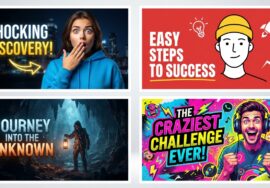
Kittl is the one I’d point apparel sellers, YouTube thumbnail makers, and branding freelancers toward without hesitation. Canva restricts you to basic curve and drop-shadow effects on text, but Kittl gives you real control over anchor points, vector paths, shading, and text warping — the kind of granular editing that actually makes a logo or a t-shirt design look intentional instead of templated.
What impressed me most is the mockup engine. You can project your design onto realistic apparel textures, packaging, or posters with accurate displacement mapping, so you can see exactly how a design will look on a hoodie before you ever print it. Its AI engine also generates royalty-free vector illustrations directly onto the canvas, and — this is the important part — they stay fully editable as vector paths, not flattened images.
It’s steeper to learn than Canva, and it’s not built for multi-page documents or video timelines. But as a graphic design tool for a thumbnail maker or a logo maker AI workflow, it’s genuinely one of the strongest options out there right now.
Visme — For Data-Heavy and Presentation Content
If your content leans more corporate — think reports, infographics, or data-driven presentations — Canva starts to show its limits fast. Visme is built specifically for visual data storytelling. It connects live to Google Sheets or Excel, so your charts update automatically the moment your numbers change, which is a genuinely huge time-saver if you’re building recurring reports.
Its AI Designer can build entire multi-page presentation decks or whitepapers from a basic text prompt while keeping the layout logic consistent. It’s a pricier tool, and it’s not optimized for quick social video content, but for educators, B2B marketers, and researchers, it fills a gap Canva simply doesn’t cover well.
Figma — For Scalable Design Systems
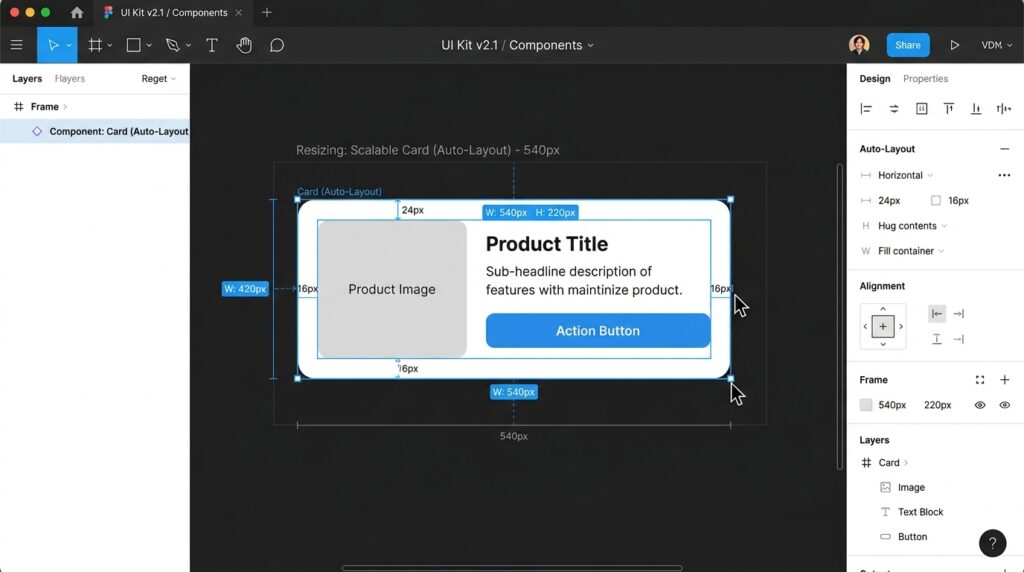
Figma isn’t a template tool at all — it’s an infinite canvas built around structured, reusable layouts. I started using it once I got tired of rebuilding the same thumbnail structure from scratch every single week. With Auto Layout, elements shrink, stretch, and reposition automatically based on content length, which basically eliminates the manual line-wrapping and shifting you constantly deal with in Canva.
Figma AI helps with layer organization, automated text generation, and component searching, but the real value is in building a “master template” once and reusing it forever with total consistency. It does require some understanding of layout principles like padding and spacing logic, and it doesn’t come loaded with royalty-free stock assets the way Canva does. Still, for creators building systematic brand assets — not just one-off graphics — it’s worth the learning curve.
Video and Audio Production: Beyond Canva’s Slide-Based Editor
This is the category where Canva falls furthest behind, honestly. Its video editor is built around page-based slides, which makes precise multi-track audio trimming, beat syncing, or split-second cuts genuinely frustrating.
CapCut — The Short-Form Powerhouse
I don’t think there’s a stronger name in short-form video editing apps right now than CapCut. Unlike Canva’s slide-based system, CapCut gives you a real non-linear editing timeline across desktop, web, and mobile, which is exactly what you need for the kind of fast, trend-driven cutting that TikTok, Reels, and YouTube Shorts demand.
What sets it apart as one of the better AI video editor tools available for free is the depth of its automation: automatic subtitle and caption generation with customizable animated styles, an AI background remover that doesn’t need a green screen, keyframe animation, AI text-to-speech voices, and automatic video reframing for different aspect ratios. If you’re chasing short-form growth, this is genuinely close to essential.
Where it falls short is static graphic and print design — don’t expect to build a logo in CapCut — and its export settings can feel a bit restrictive if you’re aiming for true cinema-grade output.
Descript — Editing by Editing Text
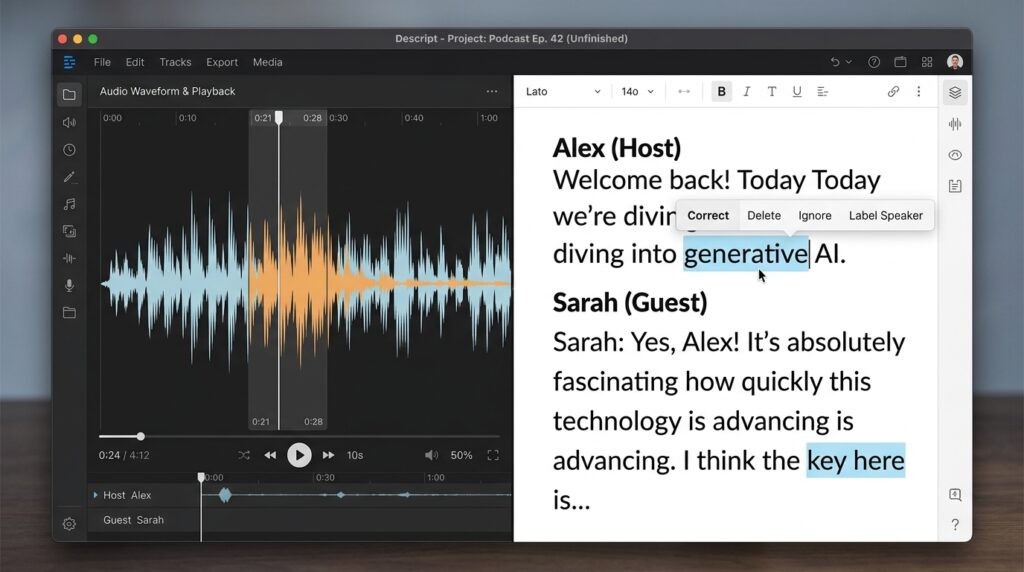
Descript remains one of the most genuinely clever tools I’ve used in this whole space. Instead of scrubbing a timeline, you edit your video or audio by editing a text transcript. Delete a sentence from the transcript, and it removes that exact chunk of the recording automatically. The first time I used this on a rough interview recording, it probably saved me two hours of manual scrubbing.
Its Studio Sound feature uses AI to lift low-quality room-mic recordings up to something close to studio fidelity in one click, which is genuinely one of the better AI podcast tools for anyone recording on a budget mic. Overdub takes it further, generating a cloned AI voice of the creator so you can fix a misspoken word without re-recording the whole segment, and there’s an Eye Contact Correction feature that nudges your gaze back toward the camera using AI.
As a piece of transcription software, it’s also just genuinely handy for creators repurposing video into blog posts or captions. It’s not built for graphic design or complex visual effects, but for podcasters, video essayists, and interview-style creators, this is close to a category leader.
Photopea — Free, Browser-Based, Photoshop-Level Control
If you need pixel-level control — layer masking, custom brushes, precise blend modes — Canva just isn’t built for that. Photopea is a full-featured, web-based image editor that mirrors the interface, shortcuts, and capabilities of Photoshop almost exactly, and it runs entirely in your browser.
It natively opens .psd, .ai, .xd, .sketch, and even .xcf files, and includes smart object manipulation, content-aware fill, and pen tool path vectorizing. It’s free (ad-supported, or a low-cost ad-free plan), requires no account, and everything processes locally in your browser, which is genuinely reassuring from a privacy standpoint. The trade-off is there’s no drag-and-drop template library or team workflow automation — this is a raw editing tool, not a content pipeline.
For YouTube thumbnail creators specifically, this is one of the best free AI photo editor alternatives to a paid Photoshop subscription that I’ve come across.
Written Content, Copywriting, and SEO Tools
StoryChief — The Editorial Command Center
Canva handles visuals, but it has nothing for managing the actual writing and publishing lifecycle. StoryChief fills that exact gap — it’s a centralized editorial workspace where teams draft articles, optimize for search engines, route drafts through approval, and publish directly to WordPress, Webflow, Shopify, and social platforms.
Its AI Power Mode helps with keyword density, meta-description generation, and content repurposing — turning a blog post into an X thread or a LinkedIn carousel automatically. If you’re managing a content calendar with more than just yourself, this kind of centralized hub genuinely saves the chaos of copy-pasting between five different tools.
Jasper AI — Structured, Brand-Aware Copywriting
Canva’s built-in “Magic Write” is fine for quick captions, but it lacks the depth needed for real campaign work. Jasper AI is one of the stronger AI content writing tools out there because of its Brand Voice feature, which trains the model on your existing documents and style guides so the output actually sounds like you, not like generic AI filler.
Its Campaign Workflows can take a single brief and turn it into a blog post, promotional emails, ad copy, and social captions all at once, which is a serious time-saver if you’re running a small marketing operation solo. It also integrates with Surfer SEO for keyword optimization. Just don’t skip the human editing pass — like any AI writing tool, it still needs fact-checking and a personal voice pass before it goes live.
If you want a deeper breakdown of AI writing tools for different content formats, check out our best AI Creative Tools
Quick and Budget-Friendly Graphic Options
Not every creator needs Figma-level complexity or an Adobe subscription. Sometimes you just need something fast.
VistaCreate — For Print and Local Business Needs
VistaCreate (formerly Crello) is probably the closest structural twin to Canva on this whole list, with the same drag-and-drop feel. What sets it apart is its direct integration with VistaPrint, which makes it genuinely easy to go from a digital design straight to a physical product — business cards, banners, merchandise. If you run a local business and need both digital posts and printed materials from the same design, this bridges that gap nicely, and it tends to be more affordable on its Pro tier than Canva.
Snappa — Zero-Fuss Visual Creation
Canva has expanded into docs, whiteboards, and video tools over the years, and honestly, that complexity isn’t always welcome. Snappa strips all of that away — open the app, pick a pre-sized canvas, add an image, overlay text, export. Its free plan gives you access to every stock photo, icon, and template, limited only by monthly exports. There’s no animation or video timeline here, but for a solopreneur or casual blogger who just needs a clean graphic in under two minutes, it does the job without any bloat.
Pixlr — Modular Photo Editing on a Budget
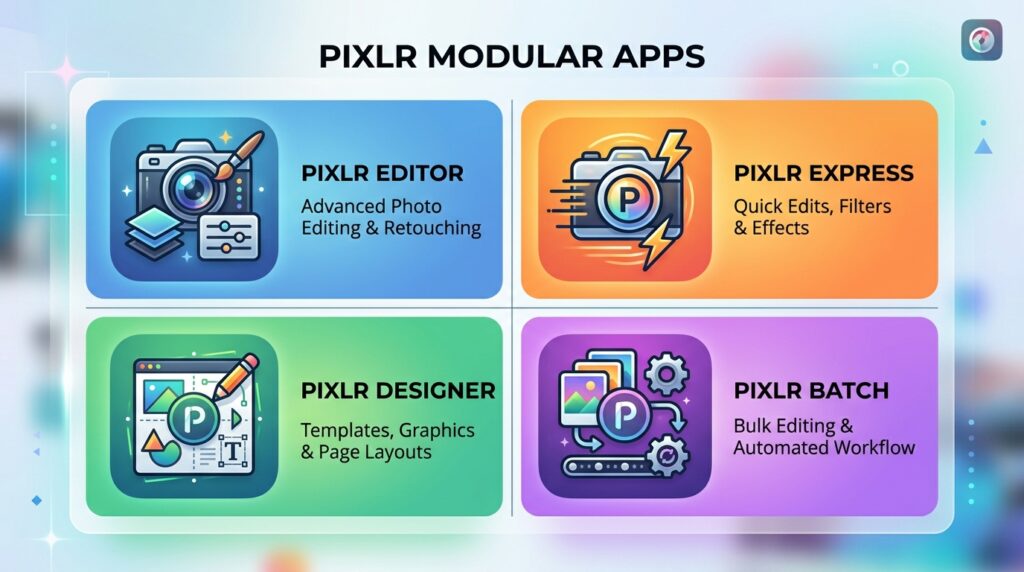
Pixlr splits itself into distinct micro-apps — an advanced photo editor, an express graphic designer, a template engine, and a batch editor — so you only load the tool you actually need for the task at hand. Its AI Generative Fill and Generative Expand (which extends a photo’s canvas boundaries intelligently) are genuinely useful for reworking stock images without paying for a full Photoshop subscription. It runs smoothly even on low-spec hardware, though the free tier is ad-supported and its template library is noticeably smaller than Canva’s.
The Bigger Picture: Building a Full Creator Tool Ecosystem
Here’s the thing I wish someone had mapped out for me earlier — none of these tools are meant to replace each other. They’re meant to sit together as different spokes of the same wheel. Once you start thinking of your content creator tools setup as an ecosystem rather than a single app, everything gets easier to plan.
Roughly, it breaks down into five buckets:
Graphic design and visual assets — Adobe Express, Kittl, Figma, and Photopea cover this, alongside AI image generator tools like Midjourney, Adobe Firefly, and Stable Diffusion for custom art direction that generic stock libraries just can’t match.
Video and audio production — CapCut and Descript for editing, alongside dedicated podcast editing software and audio editing software like Adobe Podcast AI and Audacity for cleaning up background noise and awkward pauses. If you need an AI voice generator or AI dubbing tools for multi-language narration, ElevenLabs is the name that keeps coming up for hyper-realistic synthesis while preserving emotional tone.
Written content and SEO — Jasper AI and StoryChief for drafting and publishing, plus dedicated SEO and keyword research tools like Ahrefs, Semrush, or Surfer SEO to make sure what you’re writing actually gets found.
Social media management — dedicated social media management tools like Buffer, Hootsuite, and Metricool go far beyond Canva’s basic scheduler, offering real audience analytics, cross-platform queue management, and best-time-to-post algorithms.
Automation — tools like Zapier or Make.com connect everything together, so a finished export can automatically archive to cloud storage, alert your team, and draft a scheduled post without you touching five different tabs.
For a full breakdown of how video editing specifically fits into this ecosystem, we’ve covered that in detail over at https://naijatechfocus.com/2026/08/06/best-ai-video-generator-tools-for-creators-in-2026/
The Hardware Behind the Software
Software is only half the equation. I learned this the hard way trying to run heavier design and editing tools on a laptop that just wasn’t built for it — everything from renders to exports slowed to a crawl.
For cameras, the Sony ZV-E10 covers entry to mid-tier vloggers well, while the Sony Alpha A7 IV is the step up for more cinematic, professional setups. On the audio side, the Shure SM7B is basically the industry standard dynamic mic for podcasters, and the Elgato Wave:3 is a solid USB condenser option for solo streamers who don’t want to deal with an audio interface. If webcams are more your setup, the Insta360 Link with AI tracking or the Elgato Facecam Pro for uncompressed 4K60 capture are both worth the investment.
On the laptop side, an Apple MacBook Pro with an M3 or M4 Pro/Max chip handles fast hardware-accelerated video decoding and renders quietly, which matters a lot more than people expect once you’re editing regularly.
A Simple Roadmap for Moving Off Canva
If you’re genuinely ready to unbundle your workflow, here’s the order I’d actually walk through it in, based on how I approached my own transition.
Step one: audit what you already have. Before touching new software, export your existing brand kit — logo files, fonts, hex codes, and style guides — straight out of Canva. Convert vector elements into .svg or print-ready .pdf files so they stay scalable wherever you move them.
Step two: unbundle by content type, not all at once. Don’t try to migrate everything in a weekend. Move your visual and merch design work to Kittl or Adobe Express, shift short-form video to CapCut, move podcast or long-form video into Descript, and shift your written content over to StoryChief or Jasper AI. Doing this one category at a time keeps your production schedule from grinding to a halt.
Step three: centralize your assets. Set up a proper cloud storage structure — Google Drive, Dropbox, or Frame.io — with a clear folder hierarchy like Logos & Fonts, Raw Media, Master Templates, and Exports. This alone will save you from the chaos of hunting through old Canva projects for a logo file six months from now.
Step four: build master templates in your new tools. In Figma or Adobe Express, build reusable component templates with brand rules locked in place, so anyone on your team can edit text without accidentally breaking the layout.
Step five: automate your publishing. Connect your new stack with Zapier or Make.com so that finishing an edit or exporting a thumbnail automatically archives the file, alerts your team, and drafts a scheduled post — instead of you manually doing all three every single time.
Final Thoughts
Canva got a whole generation of creators — myself included — comfortable with design who otherwise would’ve never touched a creative tool. That’s genuinely valuable, and there’s no shame in starting there or even staying there if it fits your needs.
But if you’ve hit that point where your graphics feel like everyone else’s, your video editing feels clunky, or your writing and publishing workflow is scattered across too many tabs, it might be time to unbundle. Pick specialized digital creator software for each part of your pipeline — Adobe Express or Kittl for design, CapCut or Descript for video and audio, Jasper AI or StoryChief for writing — and let each tool do the one thing it’s actually built to do really well.
The creator economy tools available today are more specialized and more powerful than what most professionals had access to just a few years back. Take the time to build a stack that actually fits how you create, not the other way around.
Sources referenced for tool features and specifications: Adobe Firefly official page, official product pages for Kittl, Visme, Figma, CapCut, Descript, Photopea, StoryChief, VistaCreate, Jasper AI, Snappa, and Pixlr, alongside creator community discussions and competitive feature benchmarks across Reddit and YouTube tutorial breakdowns.