Best AI Thumbnail Generators for YouTube in 2026
I still remember the first thumbnail I ever made for a YouTube video. It was 2021, I had zero design skills, and I spent almost three hours in Photoshop trying to cut out my own face from a selfie because I didn’t know how to use the pen tool properly. The end result looked like a ransom note. True story.
Fast forward to 2026, and that same task takes me about four minutes — and honestly, the thumbnail looks better than anything I could’ve paid a freelancer $50 for back then. That’s the wild part about where we are right now with content creator tools. The gap between “professional studio output” and “regular person with a laptop” has basically disappeared, and AI is the reason why.
If you’re a small business owner trying to build a brand on social media, a tech student experimenting with your first YouTube channel, or someone who just quit their 9-5 to try the creator life full time — this guide is for you. I’m going to walk you through the actual content creator tools I’ve tested, the ones creators are talking about in forums and Reddit threads, and how to stitch them together into a workflow that doesn’t eat your entire week.
Let’s get into it.
Why the Content Creator Tools Landscape Changed So Fast
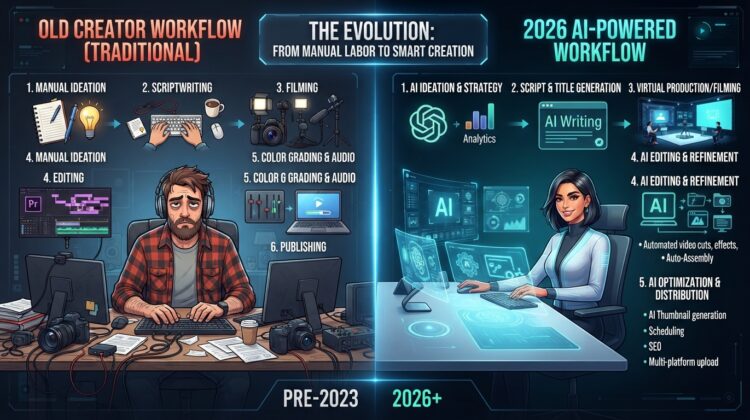
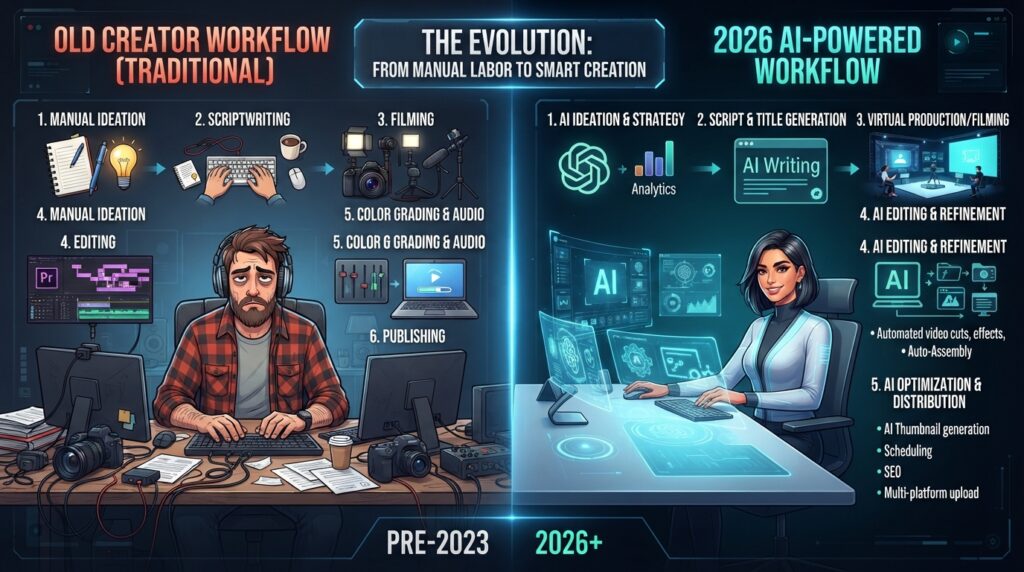
A few years ago, “content creation” meant juggling five or six separate pieces of software that barely talked to each other. You had your camera footage, your editing timeline, your thumbnail file, your caption doc, and your scheduling calendar — all living in different apps, all requiring separate skills to operate.
What’s changed in 2026 is that AI tools for content creators now handle the boring, repetitive, technically-hard parts — background removal, facial expression generation, keyframe extraction, caption writing — so you can spend your time on the part that actually matters: the idea.
I’ve found that the creators who are winning right now aren’t necessarily the most naturally talented ones. They’re the ones who’ve figured out which digital creator software to use at which stage of production. That’s really what this whole article is about.
Part 1: AI Thumbnail Maker Tools (Because CTR Is Everything)
Let’s start here because, honestly, this is where I’ve personally spent the most time experimenting. On YouTube, your video doesn’t get watched if nobody clicks on it — the algorithm rewards click-through rate above almost everything else, and a huge chunk of that CTR comes down to your thumbnail.
I used to think a good thumbnail was about being “eye-catching.” Now I think of it more scientifically: contrast, facial emotion, and readability on a screen the size of your palm, since most YouTube views happen on mobile. If your text is unreadable at 10% zoom, you’ve already lost the click.
Thumbmagic — Best for High-Frequency Uploaders
If you’re the kind of creator who’s uploading three or four times a week (gaming channels, vlog channels, automation-style channels), Thumbmagic is genuinely one of the fastest thumbnail makers I’ve tried. You upload your raw video file, and it scans it for compelling keyframes, then spits out three distinct thumbnail variations with the background already cut out and drop shadows applied.
The free tier gives you 3 generations (6 thumbnails), which is enough to test it before committing. Paid plans start around $12/month, which is cheaper than most freelancers charge for a single design.
The one downside — you don’t get super granular control over individual design layers, so if you’re a control freak like me about kerning and spacing, you’ll still want to pop the output into Canva for final touches.
Pikzels 3.2 — Best AI Photo Editor for Faces
This one surprised me. Pikzels 3.2 specializes in generating hyper-realistic synthetic faces with customizable expressions — shock, joy, curiosity, you name it. If you run a reaction channel or story-based content and don’t want to do a camera photo shoot every single time, this is a genuine time-saver.
You do need to write fairly detailed prompts to nail the exact composition you want, so it’s not quite “one click and done,” but the output quality is impressive — no weird synthetic artifacts around the eyes or mouth, which used to be the dead giveaway of AI-generated faces. Pricing runs $15 to $35/month depending on the tier.
VidIQ AI Thumbnail Generator — Best for Data-Driven Creators
I like VidIQ because it doesn’t just generate a thumbnail — it pulls from your own channel analytics and scans top-performing videos in your specific niche to model thumbnail styles after what’s already proven to work. It’s less “creative gamble” and more “informed decision.”
You can also make quick natural-language edits like “make the background darker” or “increase text contrast,” which feels a lot like chatting with a designer instead of digging through menus. The free tier is decent for testing, and it’s bundled into VidIQ Pro/Boost plans starting around $7.50 to $39/month.
1of10 — Best for Outlier Research
Before you even open a design tool, it helps to know what’s working. 1of10 is trained on thousands of viral “outlier” videos across niches and suggests high-CTR thumbnail layouts based on actual proven formats — not just vibes. I usually treat this as step zero: research first, design second. Plans start at $29/month.
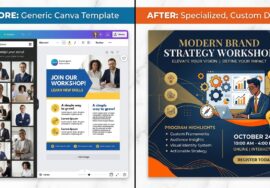
[Suggested image: A comparison graphic of 3-4 sample thumbnails — “before AI tools” vs “after AI tools” — place this after the Thumbnail Maker section.]
If you want a deeper breakdown of thumbnail psychology and color theory for higher CTR, I’ve written more about that over at indishmarketer.com/thumbnail-design-tips.
Part 2: AI Image Generators for Custom Creative Assets
Once you go beyond templated thumbnail generators, the next tier of tools is raw AI image generation — the engines that let you build a completely custom visual from scratch, which you then bring into a design suite for text and branding.
Midjourney (v6/v7) — Best for Cinematic Visuals
I’ll be honest, nothing else comes close to Midjourney for pure visual drama. If I want a background with rim lighting, depth of field, and that “movie poster” feel, I prompt it with the --ar 16:9 parameter and let it cook. The catch is there’s no native text editor, so you’ll always need to bring the output into Canva or Photoshop to add your title text. Pricing runs $10/month for Basic up to $30/month for Standard with unlimited Relax Mode.
Flux & Leonardo.ai — Best for Batch Generation
When I need volume — say, five different concept variations for the same video — Leonardo.ai and Flux are my go-to. Leonardo actually includes built-in canvas editing, an object eraser, and upscaling tools, which means sometimes I don’t even need to leave the platform. It also has a genuinely generous free tier (150 daily tokens), which is more than most tools offer. Paid tiers start at $10/month.
Adobe Firefly & Photoshop Generative Fill — Best for Commercial Safety
If you’re a small business owner and copyright safety actually matters to your brand (it should), Adobe Firefly is trained entirely on Adobe Stock, meaning it’s 100% commercially safe to use. I lean on Generative Fill inside Photoshop constantly for quick fixes — expanding a background’s aspect ratio, removing a stray object, adjusting lighting — without destroying the original layers. It requires a Creative Cloud subscription starting at $22.99/month, so it’s more of an investment, but for agencies or teams, it pays for itself fast.
[Suggested image: Side-by-side of a raw AI-generated background vs the finished composited thumbnail — place this after the AI Image Generators section.]
Part 3: Graphic Design Tools & All-in-One Creator Suites
Not everyone wants to learn Photoshop, and that’s completely fine. This is where all-in-one graphic design software comes in — tools that combine templates, brand kits, and AI features into one dashboard.
Canva Magic Studio — Best for Beginners
I recommend Canva to literally everyone starting out, no exceptions. Magic Studio includes text-to-image generation (Dream Lab), Magic Expand, one-click background removal, and smart typography alignment. It has the lowest learning curve of anything on this list, and the free plan is genuinely usable, not just a teaser. Canva Pro runs $14.99/month or $119.99 a year if you commit annually.
My only real critique — if you’re not customizing the templates, your designs can start to look like everyone else’s. I’ve scrolled past a hundred nearly-identical Canva Instagram carousels in my feed. Add your own AI-generated images into the mix to stand out.
Kittl — Best Logo Maker AI and Typography Tool
If your content leans heavily on bold text-based graphics, vector art, or you need a genuine logo maker AI, Kittl’s text-transform effects, 3D lettering, and text masking are noticeably more advanced than what you get in Canva. Free tier has export limits, and Pro starts at $15/month.
I’ve put together a longer comparison of design tools specifically for small business branding at indishmarketer.com/graphic-design-tools-for-small-business, if that’s more your focus.
Part 4: Video Editing Software and AI Video Editors
Thumbnails get the click, but your video editing is what keeps someone watching — and eventually, what keeps them subscribing.
For high-volume creators, the standard stack right now includes DaVinci Resolve, Adobe Premiere Pro, CapCut, and Descript. Each has its own personality:
DaVinci Resolve is the one I recommend if you’re serious about color grading and don’t mind a steeper learning curve — and its free version is shockingly capable for a “free” tool. Adobe Premiere Pro remains the industry standard for teams already inside the Adobe ecosystem. CapCut is what I tell every new creator to start with because it’s built for short-form vertical content and has AI auto-captioning baked right in. Descript, meanwhile, has genuinely changed how I edit talking-head videos — you literally edit video by editing a text transcript, which sounds strange until you try it and realize how much time it saves cutting out “ums” and dead air.
Part 5: AI Voice Generators, Podcast Editing & Audio Tools
If your content involves voiceovers, dubbing, or a podcast, this next category of AI podcast tools deserves its own attention.
ElevenLabs has become the name creators throw around most often for AI voice generation — whether that’s cloning your own voice for consistency across videos, generating voiceovers in different languages, or handling dubbing so your content can reach non-English audiences without you learning a second language. For dubbing specifically, this matters more than people realize; a huge chunk of audience growth in 2026 is coming from creators repurposing English content into Spanish, Hindi, or Portuguese versions using AI dubbing tools instead of hiring separate voice actors for every market.
On the podcast editing software side, most creators are pairing their voice tools with transcription software that automatically generates show notes, timestamps, and captions from the raw audio file — turning what used to be a two-hour manual task into something that finishes while you make coffee.
I go deeper into specific audio video editing software recommendations for youtubers at https://naijatechfocus.com/2026/08/06/best-ai-video-generator-tools-for-creators-in-2026/
Part 6: AI Content Writing Tools for Scripts and SEO
Every piece of visual content still starts with words — a script, a hook, a caption, or an SEO-optimized description. This is where AI writing tools like Claude, ChatGPT, and Jasper come into the workflow. Personally, I use these for outlining scripts and brainstorming hooks, then rewrite everything in my own voice — because audiences can tell when something sounds robotic, and Google’s helpful content guidelines increasingly reward writing that shows real, first-hand experience rather than generic AI output.
For keyword research and search volume data to pair with your scripts, tools like Ahrefs or VidIQ round out the SEO side of things nicely.
Part 7: Social Media Management Tools for Repurposing Content
Once your main video or blog post is done, the real leverage comes from repurposing it across platforms. This is where social media management tools like Metricool, Buffer, and Opus Clip come in — automatically slicing long-form videos into Shorts, Reels, and TikTok clips, then scheduling them across your accounts so you’re not manually uploading to five apps every single day.
My Recommended Production Workflow (Step by Step)
After testing most of what’s on this list, here’s the workflow I actually use, start to finish, for a single YouTube video:
Step 1 — Research first. I open VidIQ or 1of10 and study what thumbnail layouts and hooks are already winning in my niche before I design anything.
Step 2 — Generate the raw visual asset. Depending on the video, I either prompt Midjourney for a cinematic background or use Pikzels 3.2 if I need a synthetic expressive face.
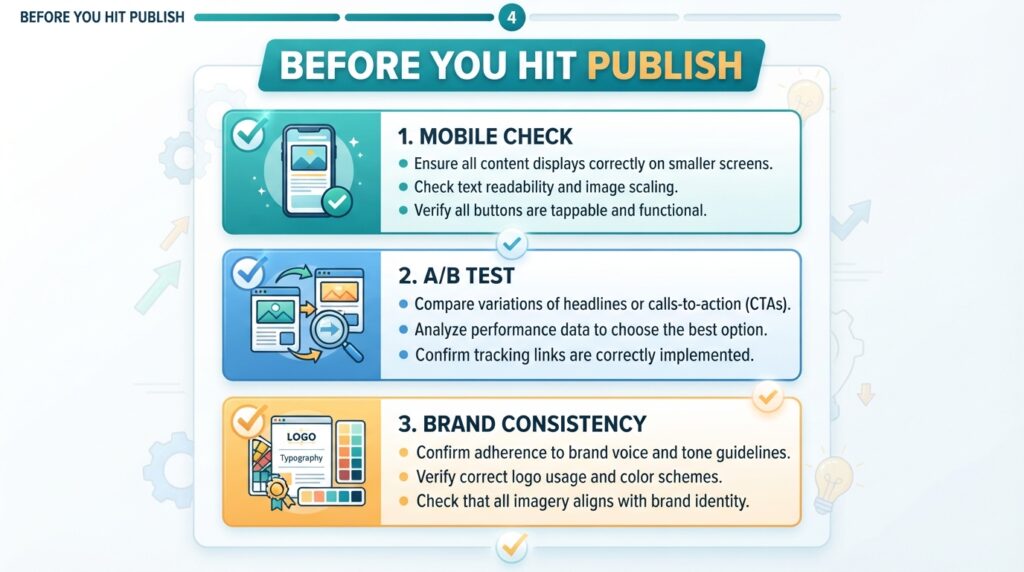
Step 3 — Composite everything in Canva. Background removal, bold high-contrast text (I try to stick to 3-4 words max), a subtle rim glow, and I make sure yellow or white text pops against a dark background.
Step 4 — Mobile check. I shrink the thumbnail down to roughly 10% size on my screen to simulate a phone feed. If I can’t read the text at that size, it’s back to the drawing board.
Step 5 — A/B test. I upload two or three variants using YouTube’s native Test & Compare feature and let it run until it’s collected somewhere between 5,000 and 10,000 impressions before locking in a winner.
This entire process, start to finish, now takes me under 45 minutes for a video that used to eat half a day.
Hardware Still Matters (Even in an AI World)
One thing I always tell newer creators — AI tools for content creators can fix a lot, but they can’t fully rescue terrible source footage. If your lighting is muddy and your audio sounds like it was recorded in a tin can, no amount of AI polish will save it.
For creators serious about upgrading, a solid starting setup includes a camera like the Sony ZV-E10 or Alpha 6700, a basic studio light like the Elgato Key Light, and a dedicated microphone such as the Shure SM7B or Røde Wireless PRO. You genuinely don’t need to spend thousands — I started with a $300 camera and a $70 light and it was more than enough to get going.
Building Your Creator Tech Stack on a Budget
I get this question a lot from tech students and people testing the waters before quitting their day job: “What do I actually need to buy versus what can I skip?”
Here’s how I’d break it down if I were starting completely from zero today, with a monthly budget in mind rather than trying to buy everything at once.
Under $20/month tier: Canva free or Pro, CapCut (free), Leonardo.ai free tier, and Thumbmagic’s free plan. This covers thumbnail creation, video editing, and basic AI image generation without spending a cent beyond maybe one paid tool.
$50-100/month tier: Add VidIQ Pro for analytics and thumbnail intelligence, Midjourney Basic for higher-quality visuals, and ElevenLabs’ starter plan if you’re doing voiceovers or dubbing. This is roughly where I sat for my first year of consistent uploading, and it was plenty.
$150+/month tier (small teams or agencies): This is where Adobe Creative Cloud, Kittl Pro, and a proper social media management tool like Buffer or Metricool start to make sense, especially once you’re managing multiple channels or clients rather than just your own content.
The mistake I made early on was paying for tools I used maybe twice a month. My advice — track what you actually open every week for a month, then cancel anything that isn’t earning its subscription fee. Most creators I know are paying for at least one tool they’ve completely forgotten about.
Free vs Paid: Where It Actually Matters
Not every category is worth paying for right away. In my experience, the free tiers of AI image generators (Leonardo especially) are genuinely good enough for most beginner and intermediate creators. Where paying actually moves the needle is in video editing software once your projects get longer and more complex, and in AI voice generators once you need consistent, brand-specific voice cloning rather than generic text-to-speech.
Thumbnail tools sit somewhere in the middle — the free tiers are fine for testing which tool fits your style, but once you’re uploading regularly, the time saved by paid variant generation usually justifies the $10-15/month.
Common Mistakes Creators Make With AI Tools
I’ve made most of these myself, so consider this a shortcut past the mistakes that cost me time.
Over-relying on default templates. Whether it’s Canva or a thumbnail generator, using the output exactly as-is without any customization is the fastest way to blend into a sea of identical content. Always tweak at least the colors, fonts, or composition to match your specific brand.
Skipping the mobile check. I mentioned this in the workflow above, but it’s worth repeating because it’s the single most common mistake I see — designing a thumbnail that looks great full-screen on a desktop monitor and then completely falls apart at the tiny size most viewers actually see it at in their feed.
Ignoring A/B test data. It’s tempting to pick your personal favorite thumbnail and move on. But the data from YouTube’s Test & Compare feature or TubeBuddy often surprises you — the design you were sure would win frequently isn’t the one that performs best with real viewers.
Using AI writing tools without editing. This applies to scripts, captions, and descriptions. AI content writing tools are excellent for getting past a blank page, but publishing the raw output without adding your own voice and specific examples is easy to spot, and it tends to underperform content that sounds genuinely human.
Not backing up your brand assets. With so many tools generating logos, thumbnails, and graphics on the fly, it’s easy to lose track of your final files. I keep a simple folder system organized by month and project, synced to cloud storage, so nothing gets lost when a tool changes its export format or shuts down a feature.
How These Tools Fit Different Types of Creators
Not every tool on this list makes sense for every type of creator, so here’s a quick gut-check based on who you are.
If you’re a small business owner managing your own social presence alongside running your actual business, I’d prioritize Canva Magic Studio for speed, plus a social media management tool like Metricool to batch-schedule a week’s worth of content in one sitting rather than posting daily in real time.
If you’re a tech student or young graduate building a portfolio or personal brand, lean into the free tiers aggressively — Leonardo.ai, CapCut, and Canva’s free plan can carry you a long way before you need to spend anything, and having a public body of work matters more at this stage than having the fanciest tools.
If you’re a full-time YouTube creator or gaming/vlog channel, the thumbnail-specific tools like Thumbmagic and Pikzels 3.2 earn their subscription cost quickly because of how much volume you’re producing, and pairing them with VidIQ’s analytics closes the loop between design and performance.
If you’re running a podcast or audio-first show, your priority list flips — AI voice generators, transcription software, and dedicated podcast editing software matter more than visual tools, though you’ll still want a decent thumbnail or cover art generator for episode artwork.
Frequently Asked Questions
What’s the best free AI tool for content creators just starting out? If you’re on a tight budget, I’d start with Canva’s free plan for design, CapCut for editing, and Leonardo.ai’s free daily tokens for image generation. That combo alone covers a huge chunk of what most beginner creators need.
Do AI thumbnail generators actually improve click-through rate? In my experience, yes — but only when paired with actual A/B testing. The tools give you better starting designs, but testing is still what tells you which one your specific audience responds to.
Is it worth paying for multiple tools, or should I stick to one all-in-one suite? It depends on your volume. If you’re uploading once a week, an all-in-one suite like Canva is probably enough. If you’re uploading daily or running a small content team, specialized tools (a dedicated thumbnail generator, a dedicated video editor, a dedicated voice tool) tend to produce better results per hour spent.
Final Thoughts
The honest truth is that the tools are no longer the bottleneck for most creators — access to great AI tools for content creators is basically democratized at this point, and most of them have usable free tiers. What actually separates channels that grow from channels that stall is consistency, and knowing which tool to reach for at which stage of the process.
I’d rather you take one tool from this list, actually sit down and use it this week, than bookmark this article and never open it again. Start with your biggest bottleneck — thumbnails, editing, or writing — and build from there.
If you want more hands-on breakdowns like this one, I regularly update my creator tools reviews over at indishmarketer.com/creator-tools-reviews.
Sources referenced: YouTube Creator Insider — mobile viewing statistics, creator forum and community discussions, and hands-on testing of the tools listed above.